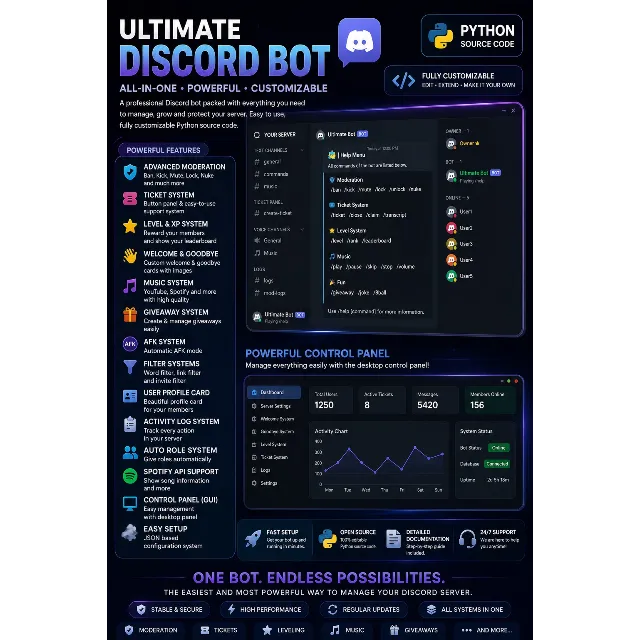
Take your Discord server management to the next level with this advanced Python-based Discord bot. This bot includes moderation tools, ticket system, welcome/goodbye cards, leveling system, music features, AFK system, filters, giveaways, server setup tools, and a desktop management panel.
This is a ready-to-edit Python source code project, suitable for Discord server owners, developers, and anyone who wants to create or customize their own multi-feature Discord bot.
Key Features
✅ Discord moderation commands ✅ Ban, kick, mute, lock, unlock, nuke commands ✅ Ticket support system with buttons ✅ Welcome and goodbye image cards ✅ Auto-role system ✅ Level and XP system ✅ Giveaway system ✅ Word filter and link filter ✅ AFK system ✅ User profile card generator ✅ Music-related features ✅ Spotify API support ✅ Activity logging ✅ Server setup command ✅ Desktop GUI control panel ✅ JSON-based configuration system ✅ Easy to customize Python source code
What You Will Receive
You will receive:
Full Python source code file Discord bot system Control panel / GUI structure JSON configuration support Editable and customizable code
This is a digital product. No physical item will be shipped.
Requirements
Before running the bot, you need:
Python 3.10 or newer A Discord bot token A Discord Developer Portal application Required Python libraries Optional Spotify API credentials for Spotify link support Installation Guide Step 1: Install Python
Download and install Python from the official Python website.
During installation, make sure to enable:
Add Python to PATH Step 2: Install Required Libraries
Open Command Prompt / Terminal in the project folder and run:
Go to the Discord Developer Portal and create a new application.
Then:
Open your application Go to the Bot section Click Add Bot Copy your bot token Enable required intents: Presence Intent Server Members Intent Message Content Intent Step 4: Add Your Bot Token
Open the Python file and find the bot token section.
Paste your Discord bot token where required.
Example:
bot.run("YOUR_BOT_TOKEN_HERE") Step 5: Invite the Bot to Your Server
In the Discord Developer Portal:
Go to OAuth2 Open URL Generator Select: bot applications.commands Select required permissions: Administrator is recommended for full functionality Open the generated invite link Add the bot to your server Step 6: Optional Spotify Setup
If you want Spotify link support:
Create a Spotify Developer account Create an app Copy your Client ID and Client Secret Add them into: spotify_credentials.json
Example:
{ "client_id": "YOUR_CLIENT_ID", "client_secret": "YOUR_CLIENT_SECRET" } Step 7: Run the Bot
Open Command Prompt / Terminal in the project folder and run:
python bot_english.py
If everything is set correctly, the bot will start and log in successfully.
!
⚙️ Management & Setup !kur (setup server automatically) !panelolustur (create member count panel) !otorol-ayarla @rol (set auto role) !otorol-kapat (disable auto role) !emojiekle